
Overview
The Kalpla refund system provides refunds for eligible courses, live classes, and webinars based on the type of purchase and the applicable refund window.
The refund system follows an all-or-nothing model:
Eligible refunds are for 100% of the amount paid.
Partial refunds are not supported.
Refunds are issued as Kalpla Wallet Credit.
Refunds are not returned directly to the original card, UPI, or bank account.
How to Request a Refund
To Create a Ticket
Open Help & Support.
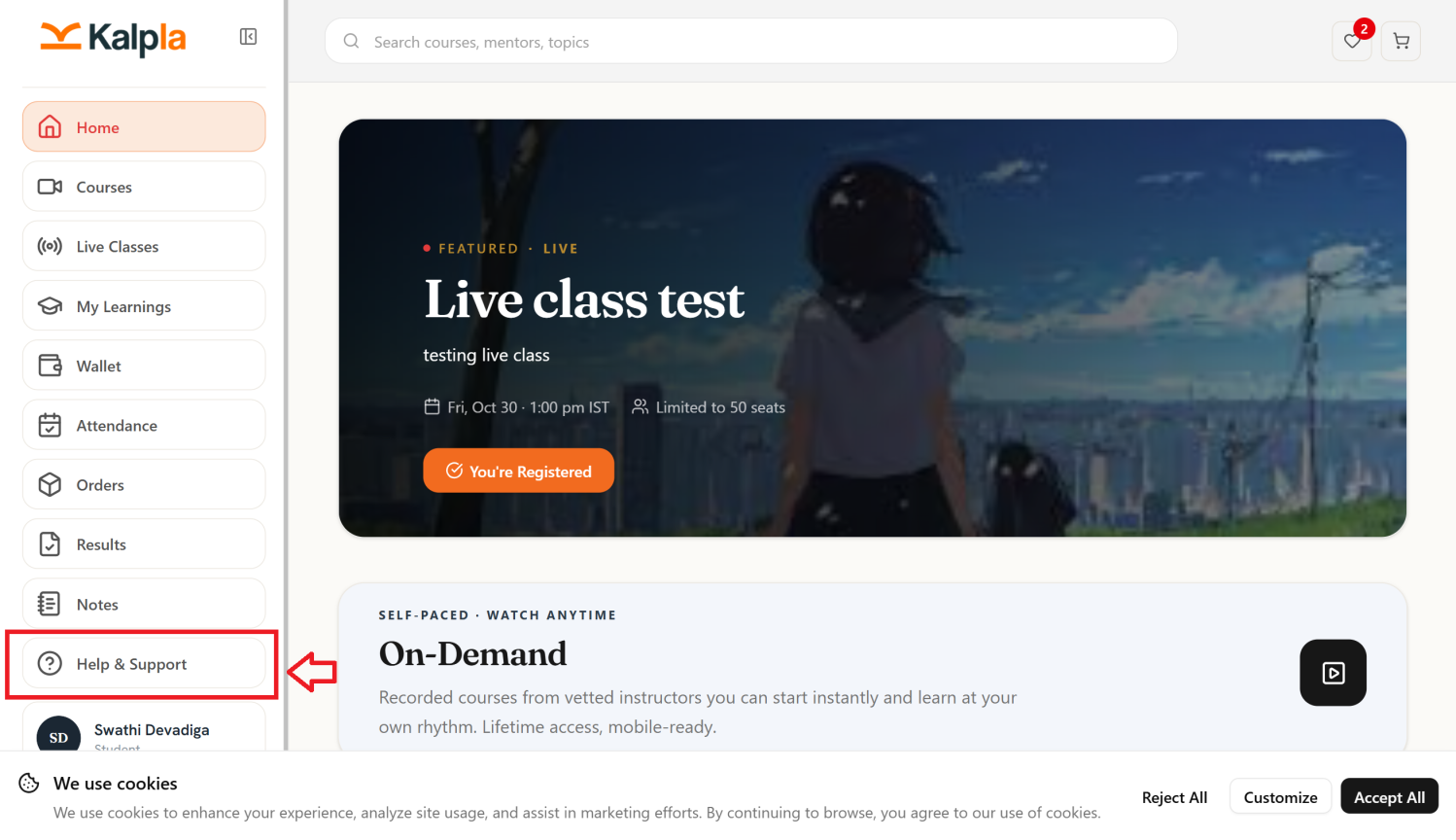
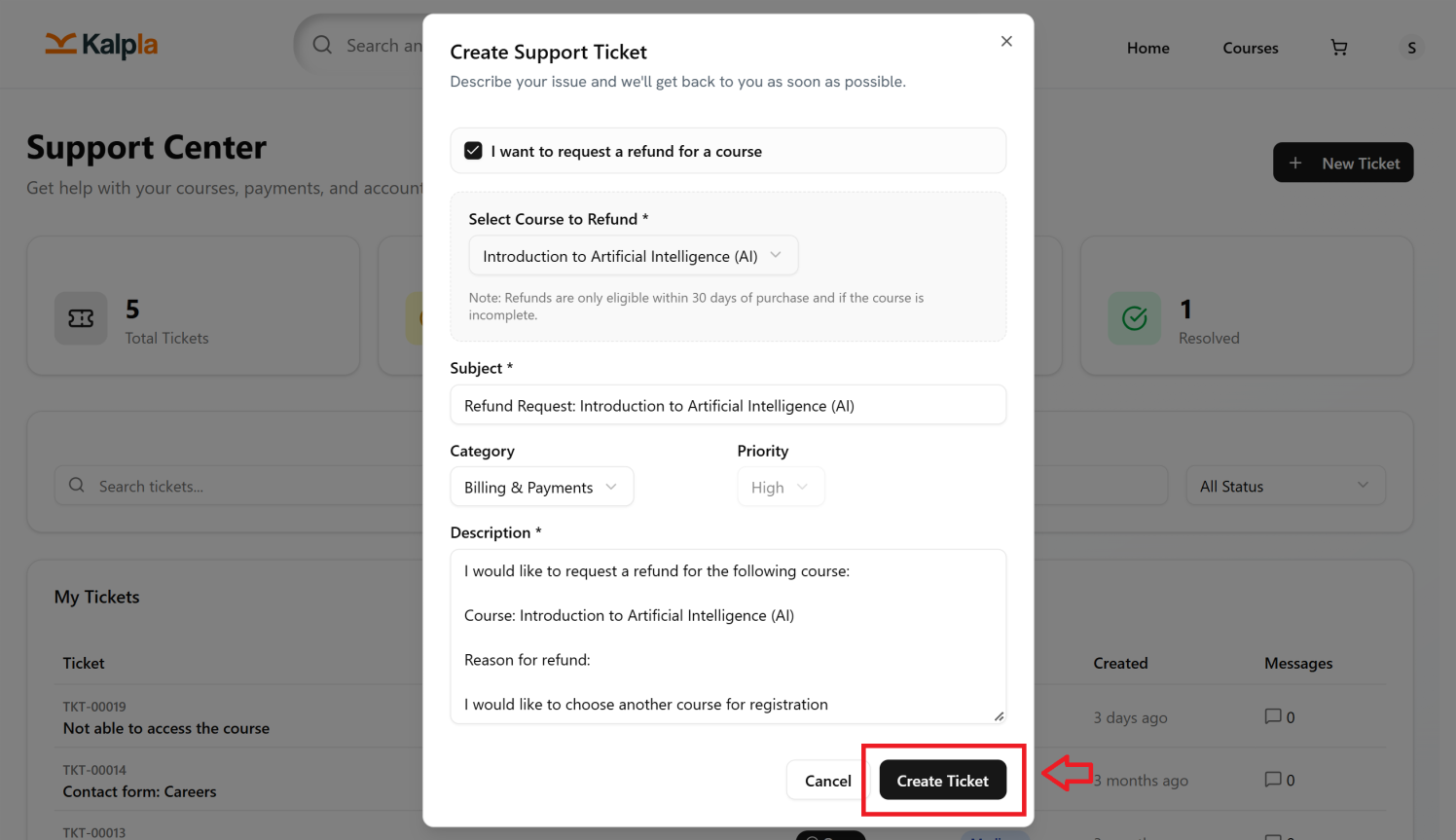
Click on the checkbox I want to request a refund for a course
Select the particular course which you are looking for refund under Select course to Refund.
Subject will be automatically set to Refund Request.
Select the category as Billing & Payments.
Enter a description regarding the refund you are requesting.
Select Create Ticket
Refund Process:
Refund Rules by Product Type
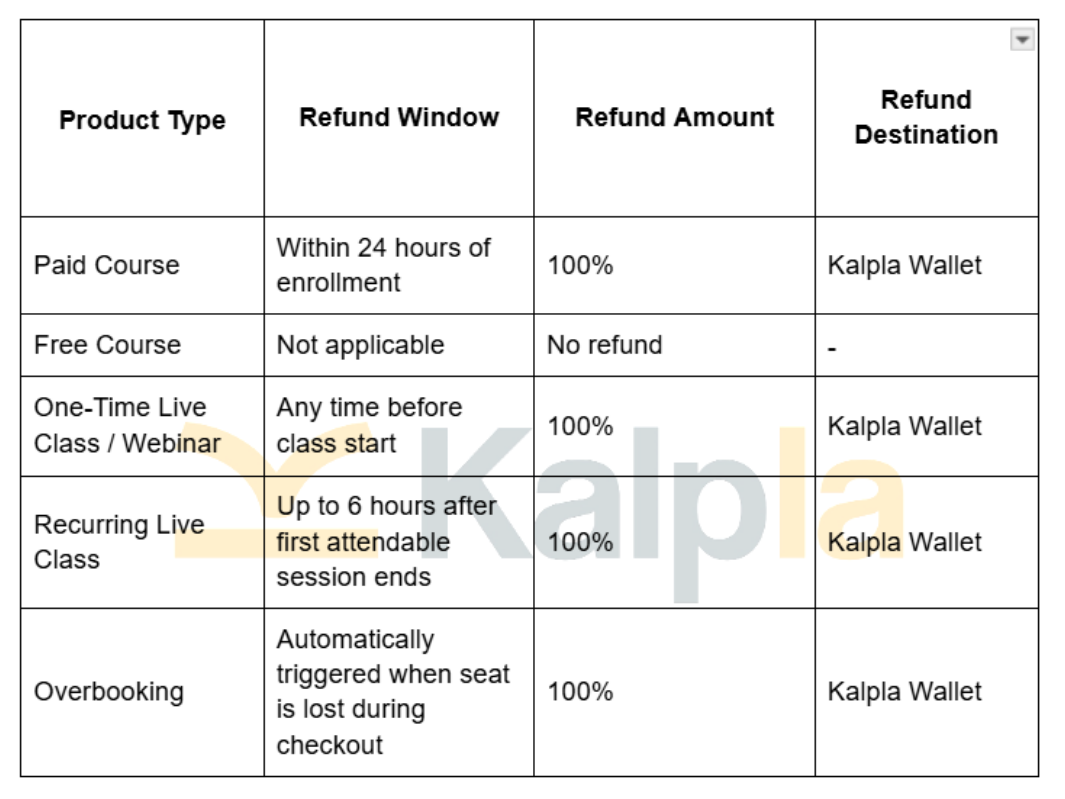
A paid course is eligible for a full refund when the refund request is made within 24 hours of enrollment.
Free courses do not have a refundable payment.
A one-time live class or webinar can be cancelled at any time before the class starts.If the cancellation is made before the start time user is eligible for full refund
For recurring live classes, the refund window is based on the first attendable session.
A user can cancel and receive a full refund until 6 hours after the first attendable session ends.
Kalpla automatically refunds a user when the user's seat is lost because of overbooking during checkout.
All refunds are credited to the user's Kalpla Wallet.
The system does not refund the amount directly to:
- Credit card
- Debit card
- UPI
- Bank account
If the Refund Is Delayed
- If an approved refund has not reached your Kalpla account
- Check the refund status.
- Verify the Kalpla wallet account.
- Allow the applicable processing time.
- Contact Kalpla Support if the refund is still not received.
- Provide the ticket details if any ticket is raised when contacting Kalpla support team.
Refund for Duplicate Payment
- Check your order and transaction history.
- Identify the duplicate transaction.
- Submit a refund request or support ticket.
- Provide the relevant transaction details.
If a Refund Is Rejected
- Open the refund details.
- Check the reason provided.
- Review the applicable refund terms.
- Contact Kalpla Support(support@kalpla.com) if you need further clarification.
Important Notes
- Refunds are subject to the applicable Kalpla refund policy.
- Not every purchase may be eligible for a refund.
- Keep your order and transaction details for reference.
- Refund processing time may vary depending on the payment method or payment provider.
- Never share your password or other sensitive account information when requesting support.
Refund Features
Users may be able to:
- Request a refund.
- View refund details.
- Track refund status.
- View refunded transactions.
- Contact Kalpla support(support@kalpla.com) regarding a refund.